Connecting a feed
A feed is one supplier file that Shelfsteady fetches and compares with your store. You connect it in the first two steps of Add feed: Source and Format.
Sources
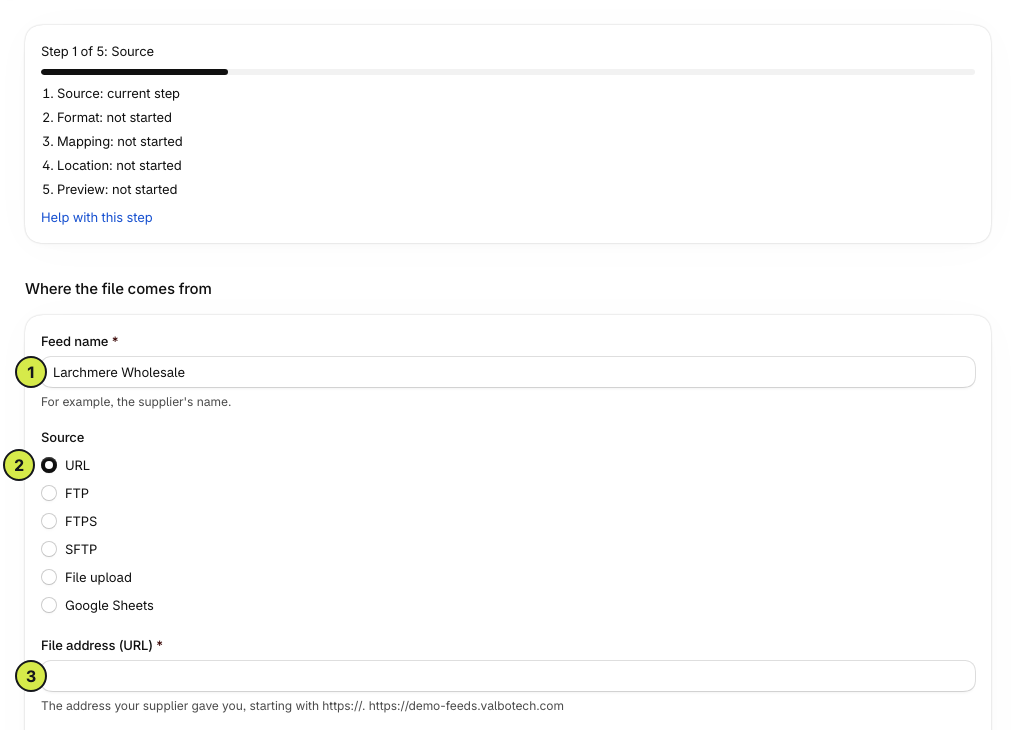
Choose where the file comes from.
| Source | What you enter |
|---|---|
| URL | The file address your supplier gave you. A username and password only if the supplier's server asks for one. |
| Google Sheets | The sheet's share link. The sheet must be shared with "Anyone with the link". |
| FTP or FTPS | The host, port, file path, username and password. |
| SFTP | The host, port, file path, username, and a password or a private key. |
| File upload | Nothing yet. You upload the file in the next step. |
URL
Use the address that starts with https://. An http:// address also works, but a username and password sent to it travel unencrypted. Shelfsteady asks you to confirm before it does that. Ask your supplier for an https:// address if they have one.
Shelfsteady sends the login only to the address you entered. It does not follow a redirect to another server, so use the file's final address.
Google Sheets
Open the sheet, choose Share, set it to "Anyone with the link", then copy the link. Shelfsteady reads the tab named in the link (gid= in the address). A link without one reads the sheet's original first tab. Private sheets are not supported.
FTP, FTPS and SFTP
Enter the server's host name, such as ftp.supplier.com, without ftp:// or a path. The default port is 21 for FTP and FTPS and 22 for SFTP. Shelfsteady connects only on ports 21, 22, 80 and 443, or on a port above 1024.
FTPS uses an encrypted connection and checks the server's certificate.
For SFTP, sign in with a password or a private key. Paste the whole key, including the BEGIN and END lines, and its passphrase if it has one.
The first time Shelfsteady connects to an SFTP server, it shows the server's host key fingerprint before it sends your login. Compare it with the fingerprint your supplier gives you, then choose Confirm and continue. Shelfsteady remembers the key and refuses to connect if it ever changes.
File upload
Upload CSV, TSV, XLSX, XML or JSON files of up to 100 MB. An upload feed runs only when you upload a new file, so it has no schedule. To send a new file later, open the feed and choose Upload a new file.
Your login is kept safe
Usernames, passwords and keys are stored encrypted. They are never shown again after you save them. To change one, choose Replace. Shelfsteady never asks for a supplier password by email.
Format: check the file
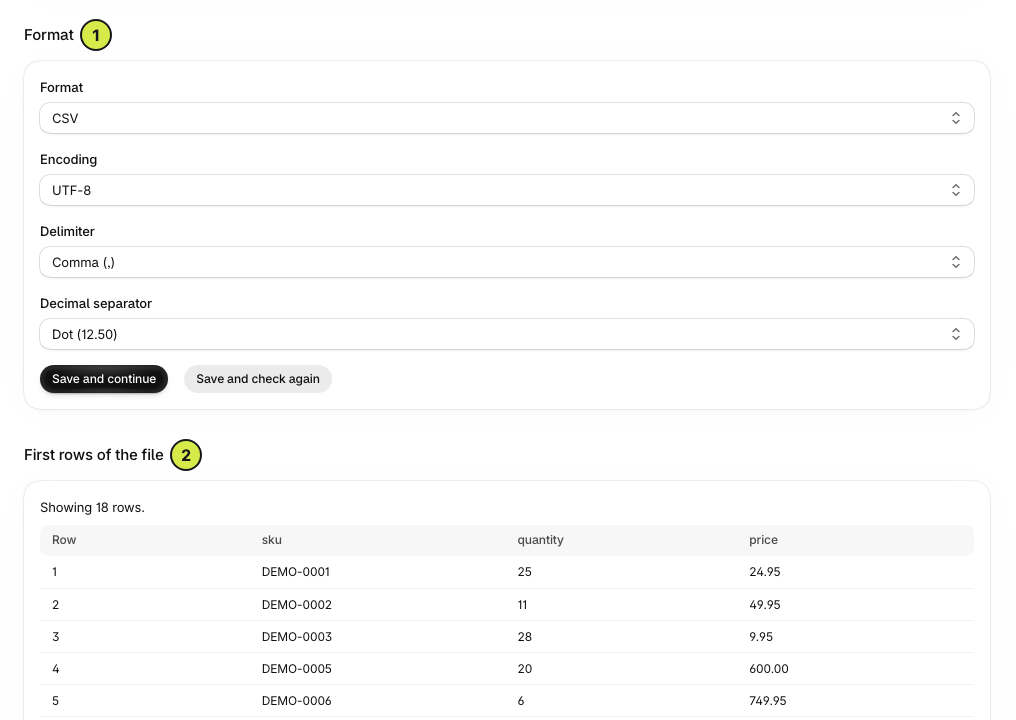
In the Format step, choose Check the file. Shelfsteady fetches the file, detects its format and shows up to the first 50 rows. Nothing is written to your store.
Shelfsteady reads:
- CSV and TSV: it detects the delimiter (comma, semicolon, tab or pipe) and the encoding (UTF-8, UTF-16 or Windows-1252).
- Excel (XLSX): the first sheet, unless you choose another.
- XML: the repeating element that holds one product, which you can change.
- JSON: the array that holds the products, which you can change.
Check the Decimal separator. If the file writes prices as 12,50, choose Comma. When Shelfsteady cannot tell from the first rows, it says so.
When the format looks right, choose Save and continue. If you change an option, or want to check the file again, choose Save and check again.
You can check files 20 times an hour per shop, and upload 20 files an hour.
Limits
- Files of up to 100 MB.
- Up to 500,000 rows per run.
If a check fails, the message says what to do. Every message is listed in Troubleshooting.