Supplier location
Each feed writes stock to one Shopify location: its supplier location. You choose it in the Location step of Add feed, and you can change it on the feed's page.
Why a dedicated location is safest
A feed sets absolute quantities. If the file says 12, the variant's stock at that location becomes 12. At a location that also holds your own stock, the feed would overwrite it. So Shelfsteady recommends a location that holds only this supplier's stock.
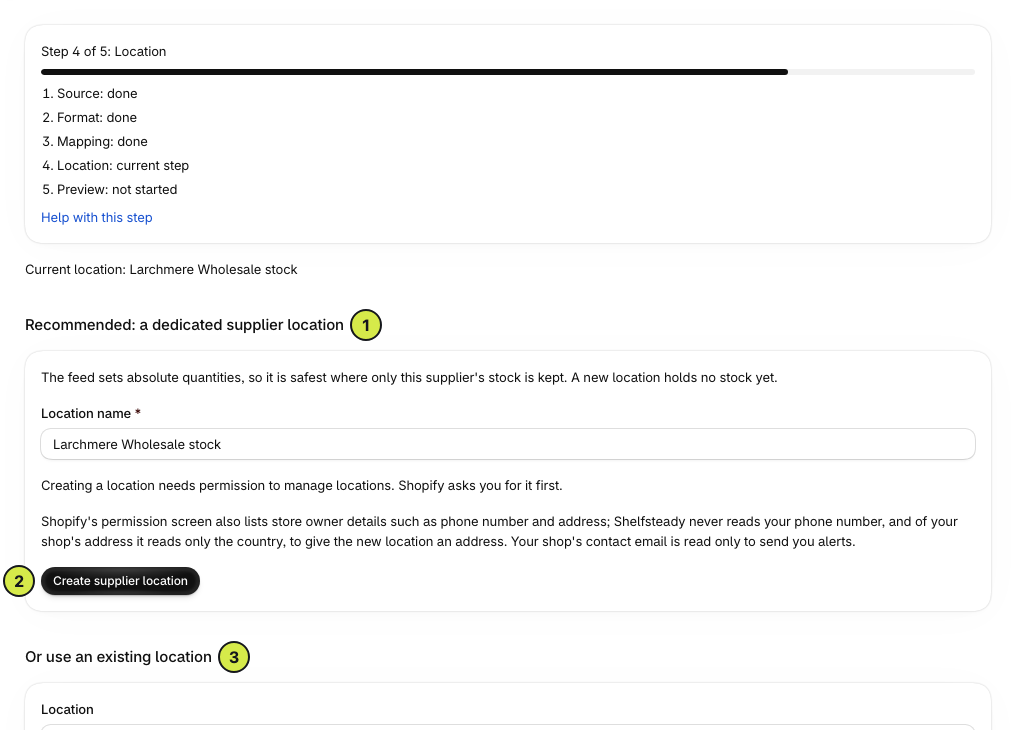
Create a supplier location
Under Recommended: a dedicated supplier location, enter a name and choose Create supplier location. The name is the feed name followed by "stock" unless you change it. A new location holds no stock yet.
Creating a location needs permission to manage locations. Shopify asks you for it first. If you do not allow it, nothing is created, and you can choose an existing location instead.
Shopify's permission screen also lists store owner details such as phone number and address. Shelfsteady never reads your phone number, and of your shop's address it reads only the country, to give the new location an address. Your shop's contact email is read only to send you alerts (see Alerts).
When the location is created, the Preview step says so: "Created the location" followed by its name.
If Shopify refuses the new location, nothing is created and the message says why:
- Your store has reached Shopify's limit on active locations. Remove or deactivate a location in Shopify under Settings then Locations, or use an existing location.
- Another location already has the name. Choose a different name.
- Shopify gave another reason, shown in the message.
When Shopify refused the location for one of these reasons, trying again as it is gives the same answer: change what the message names first. When Shopify did not answer, or your shop's country could not be read, try again in a moment. Every message is in Troubleshooting.
The first preview at a new location shows each stock change as Not stocked here before. That only means the variant has no stock at this location yet: the run gives it its first stock there.
The new location uses your shop's country as its address. You can edit it in Shopify under Settings then Locations.
Use an existing location
Under Or use an existing location, choose one from the list, which starts at Choose a location, then select Use this location. The button stays disabled until you choose. If the location already holds stock, Shelfsteady warns you. Choose Use it anyway only if the feed describes all the stock kept there.
Two feeds, one location
Two feeds must not write the same variants at the same location, or they would overwrite each other. When Shelfsteady can tell that a new feed overlaps with another feed at that location, it refuses the location and names the other feed. During a run, a variant another feed already writes at the same location is skipped and listed.
If the location is removed
If the supplier location is deleted or deactivated in Shopify, the next run fails with a message that asks you to choose a location in the feed's settings.